 DataMosaic
#Which Office editions include Spreadsheet Compare
Microsoft's own pages give two answers, depending on their age. The basic tasks page lists Office Professional Plus 2013, 2016 and 2019, and Microsoft 365 Apps for enterprise. The newer overview says it is only available with Microsoft 365 Apps for enterprise. The page on turning on Inquire, the add-in that gives you the same comparison inside Excel, says it is available only in Excel for Windows, in Microsoft 365 Apps for enterprise plans and equivalent editions.
So it is not in Excel for Mac, not in Excel for the web, and not in the home and business editions most small offices buy. To see what you have:
- In Excel, choose File › Account.
- Read the product name under Product Information.
- For the exact version, choose About Excel.
If the name doesn't match one of the editions above, Spreadsheet Compare isn't there to find. Skip to the section for everyone else.
#How to use Spreadsheet Compare from the Start menu
This is the standalone program, and it works on two closed files.
- Open the Start menu, type Spreadsheet Compare, and select it.
- Choose Home › Compare Files. The Compare Files dialog opens.
- Click the blue folder beside Compare and pick the older file. This one goes on the left.
- Click the green folder beside To and pick the newer file, then press OK. Two files with the same name can be compared if they are in different folders.
- In the left pane, tick what you want compared, such as Formulas, Macros or Cell Format, or choose Select All.
- Press OK to run the comparison.
If a file is password protected, you get an Unable to open workbook message. Press OK and type the password when asked.
#How to use it from inside Excel, with Inquire
When both workbooks are already open, the Inquire tab runs the same comparison without leaving Excel.
- Choose File › Options › Add-Ins.
- In the Manage box, choose COM Add-ins and press Go.
- Tick Inquire and press OK. An Inquire tab appears on the ribbon.
- Open both workbooks, then choose Inquire › Compare Files, pick the two files and press OK.
If Inquire isn't in the list, Microsoft gives two reasons: your version of Excel doesn't include it, or your organisation's administrator has made it unavailable. The same tab also has Workbook Analysis, a report on a workbook's formulas, cells, ranges and warnings, and Cell Relationship, a diagram of the links from one cell to other sheets and workbooks.
#Reading the results
The results come up as two grids. The Compare file is on the left, the To file on the right, and the details of every difference are listed in a pane below. A worksheet in one file is compared with the same worksheet in the other, and you move between worksheets with the arrows on the horizontal scroll bar. Hidden worksheets are compared and shown too.
Each kind of difference has its own fill or font colour. Changed entered values, the cells without a formula, get a green fill in the grids and a green font in the list. The legend in the lower-left pane says what every other colour means, so read it rather than guess. If the cells are too narrow to read, choose Resize Cells to Fit.
Three commands on the Home tab take the result further:
- Export Results saves the list of differences as an Excel workbook that is easier to read and filter.
- Copy Results to Clipboard lets you paste the list into another program.
- Show Workbook Colors shows the cells' own formatting, close to how they look in Excel.
Double-click a row in the results to see that change line by line in a new window. It is most useful for VBA, where it sets the two versions of a macro side by side.
#Where Spreadsheet Compare stops
Cell by cell means B5 in one file is compared with B5 in the other. That is exactly what you want when someone edited last month's budget and you need to know which cells they touched. It is the wrong question when the two files are exports from two different systems, because nothing in Microsoft's documentation describes lining rows up on a key such as the SKU or the store and date. The two systems don't promise the same row order, and they rarely have the same rows.
Here is an invented case. Head office's ERP exported last night's price list for ST-014, sorted by SKU. The tills at ST-014 exported what they actually loaded, in their own order. Same two columns, SKU and Price, five rows each.
| Row | ERP: SKU | ERP: Price | Till: SKU | Till: Price | Spreadsheet Compare says | Matched on SKU |
|---|---|---|---|---|---|---|
| 2 | 100231 | 4.99 | 100231 | 4.99 | Same | 100231 matches |
| 3 | 100232 | 12.50 | 100245 | 2.79 | Both cells differ | 100232 at 11.50 at the till, 12.50 in the ERP |
| 4 | 100245 | 2.79 | 100232 | 11.50 | Both cells differ | 100245 matches |
| 5 | 100260 | 8.40 | 100271 | 19.99 | Both cells differ | 100260 never reached the till |
| 6 | 100271 | 19.99 | 100302 | 3.10 | Both cells differ | 100271 matches; 100302 is on the till but not in the ERP |
Invented figures. Compared by position, four of the five rows light up and eight cells are marked as changed. Matched on SKU, there are three real differences, and each sends you somewhere else: 100232 to the price batch the store should have loaded, 100260 to the file that should have carried it, 100302 to whoever retires products on the tills. Sorting both files by SKU first helps only until one side has a row the other doesn't, and then every row below the gap is out of step again.
The other limits are about the job around it. It runs on one machine with the right edition, one pair of files at a time, when someone opens it. And it compares workbooks, so both systems have to be exported to Excel first.
#Without Spreadsheet Compare: match on a key
For two lists in Excel, a lookup on the key in both directions finds the same three differences: VLOOKUP, XLOOKUP or a Power Query merge walks through all three on this same price list. For two whole sheets that really do line up row for row, one conditional formatting rule does what Spreadsheet Compare does, in any edition of Excel.
When the exports are CSV files, PowerShell can do the match on any Windows machine, with no Office at all. Save this as compare-prices.ps1 in the folder with the two exports, change the file names, and run it with powershell -ExecutionPolicy Bypass -File .\compare-prices.ps1:
$erp  = Import-Csv -Path .\erp_prices_st014.csv
$till = Import-Csv -Path .\till_prices_st014.csv

$erpBySku = @{}
foreach ($row in $erp) { $erpBySku[$row.SKU.Trim()] = $row }
$tillBySku = @{}
foreach ($row in $till) { $tillBySku[$row.SKU.Trim()] = $row }

$skus = @($erpBySku.Keys) + @($tillBySku.Keys) | Sort-Object -Unique

$result = foreach ($sku in $skus) {
    $e = $erpBySku[$sku]
    $t = $tillBySku[$sku]
    if (-not $t) { $status = 'Missing at till' }
    elseif (-not $e) { $status = 'Not in ERP' }
    elseif ([decimal]$e.Price -ne [decimal]$t.Price) { $status = 'Price differs' }
    else { $status = 'Matches' }
    [pscustomobject]@{ SKU = $sku; ERP = $e.Price; Till = $t.Price; Result = $status }
}

$result | Where-Object Result -ne 'Matches' | Format-Table -AutoSize
$result | Export-Csv -Path .\st014_differences.csv -NoTypeInformation
It reads both files, indexes each by SKU with the spaces trimmed, and walks through every SKU found on either side. On the price lists above it prints three rows: 100232 Price differs, 100260 Missing at till and 100302 Not in ERP, and it writes every SKU with its result to st014_differences.csv. Comparing the prices as decimals means 12.5 and 12.50 count as the same. If a SKU can appear twice in one file, the later row wins, so count duplicates before you trust a match; comparing two CSV files covers that and files too large to open.
#When it is every store, every night
The script handles one store and one night. A chain of 120 stores has 120 till price lists every morning, and somebody still has to export them, run the match and decide what each difference means. Neither the script nor Spreadsheet Compare says whether the batch failed to send, failed to load or was overwritten, and neither sends it again.
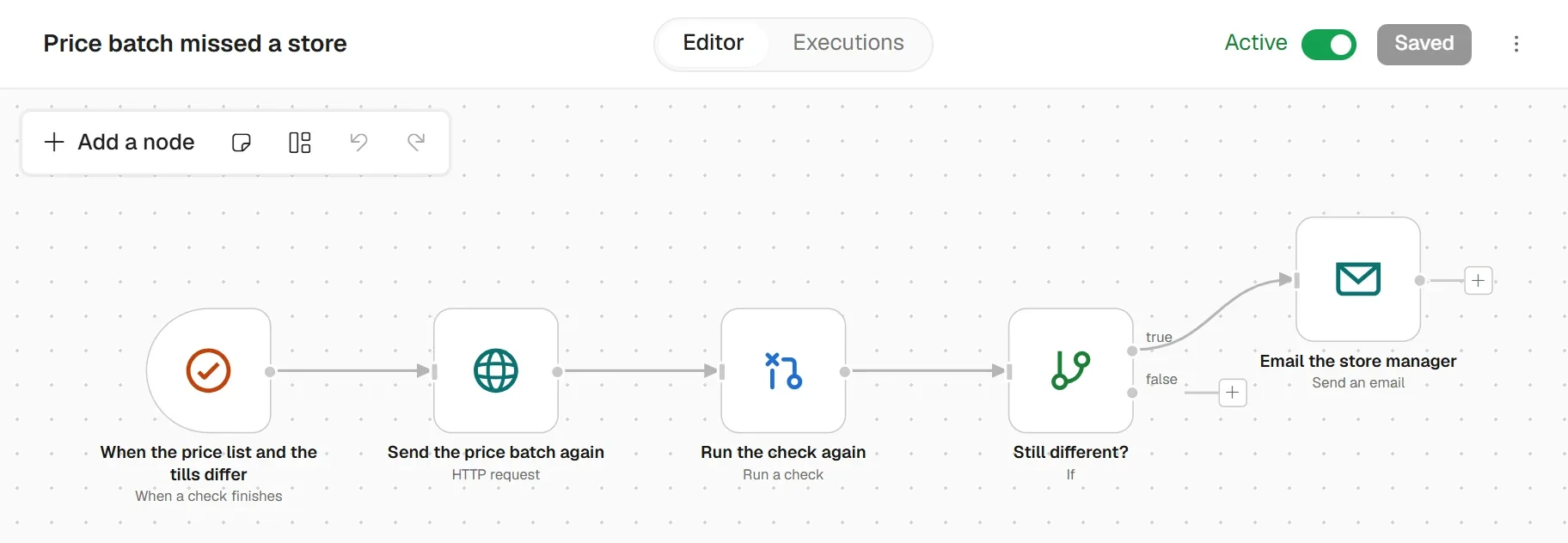
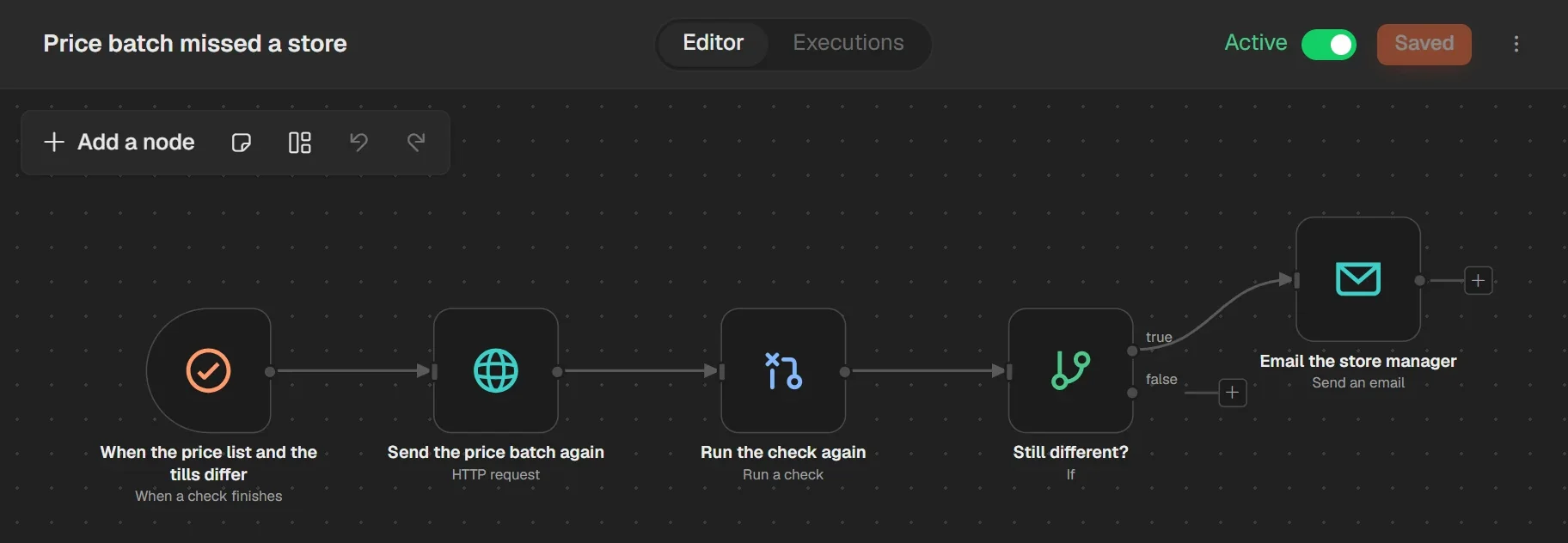
DataMosaic does this comparison as a check. It reads the systems themselves, or their CSV and Excel exports when there is no connection yet, lines the sources up on shared keys, and shows matched, differing and missing rows. Normalising makes two systems read the same way before anything is compared, so S014 and 014, or text and number, stop being a difference. Rules decide when a run fails, and a schedule runs the check before anyone arrives. A check only reads. Mosaic changes a system only through a workflow you build, such as sending the price batch again and running the check once more.
#Questions people ask
#Is Spreadsheet Compare free?
It comes as part of the Office editions that include it. Microsoft lists Microsoft 365 Apps for enterprise, and its older pages also list Office Professional Plus 2013, 2016 and 2019.
#Why can't I find Spreadsheet Compare on my computer?
Usually because your edition of Office doesn't include it. Check the product name under File › Account. If it is an edition that does, search the Start menu for Spreadsheet Compare, or turn on Inquire under File › Options › Add-Ins › COM Add-ins.
#Does Spreadsheet Compare work on a Mac?
No. Microsoft says Inquire, and with it Compare Files, is available only in Excel for Windows.
#Can Spreadsheet Compare compare CSV files?
It compares Excel workbooks, so open each CSV in Excel and save it as a workbook first. Exports from two systems are better matched on a key, with a lookup in Excel or the PowerShell script above.
#How do I export the differences from Spreadsheet Compare?
Choose Home › Export Results to save them as an Excel workbook, or Home › Copy Results to Clipboard to paste them somewhere else.